
Videos are a great way to make your storefront more engaging and help shoppers quickly understand what you offer. With the Video Showcase section, you can add videos to your store. Here’s how to set it up:
Add a Video Showcase to your store
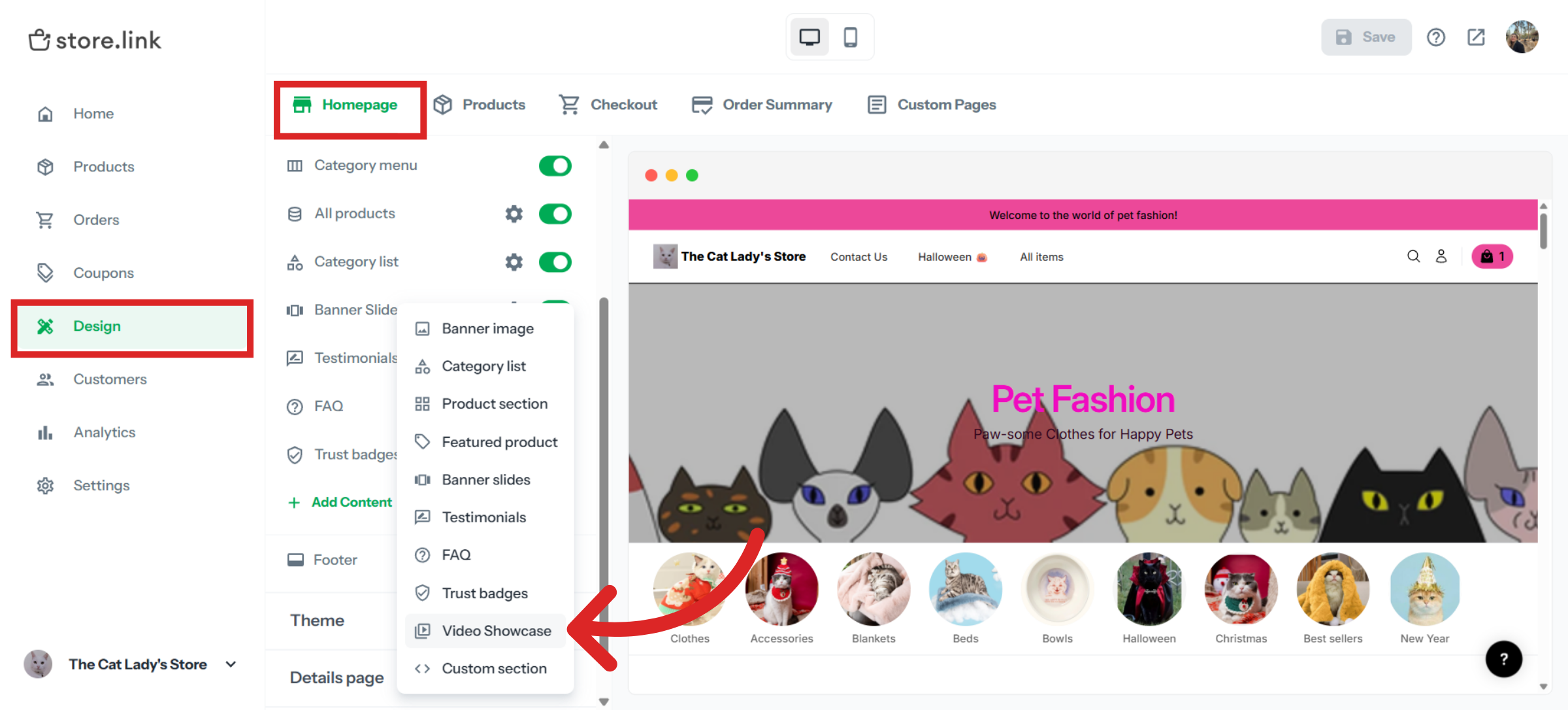
Go to your dashboard and select Design. Under Homepage, click + Add Content and choose Video Showcase.
Edit Video Showcase settings
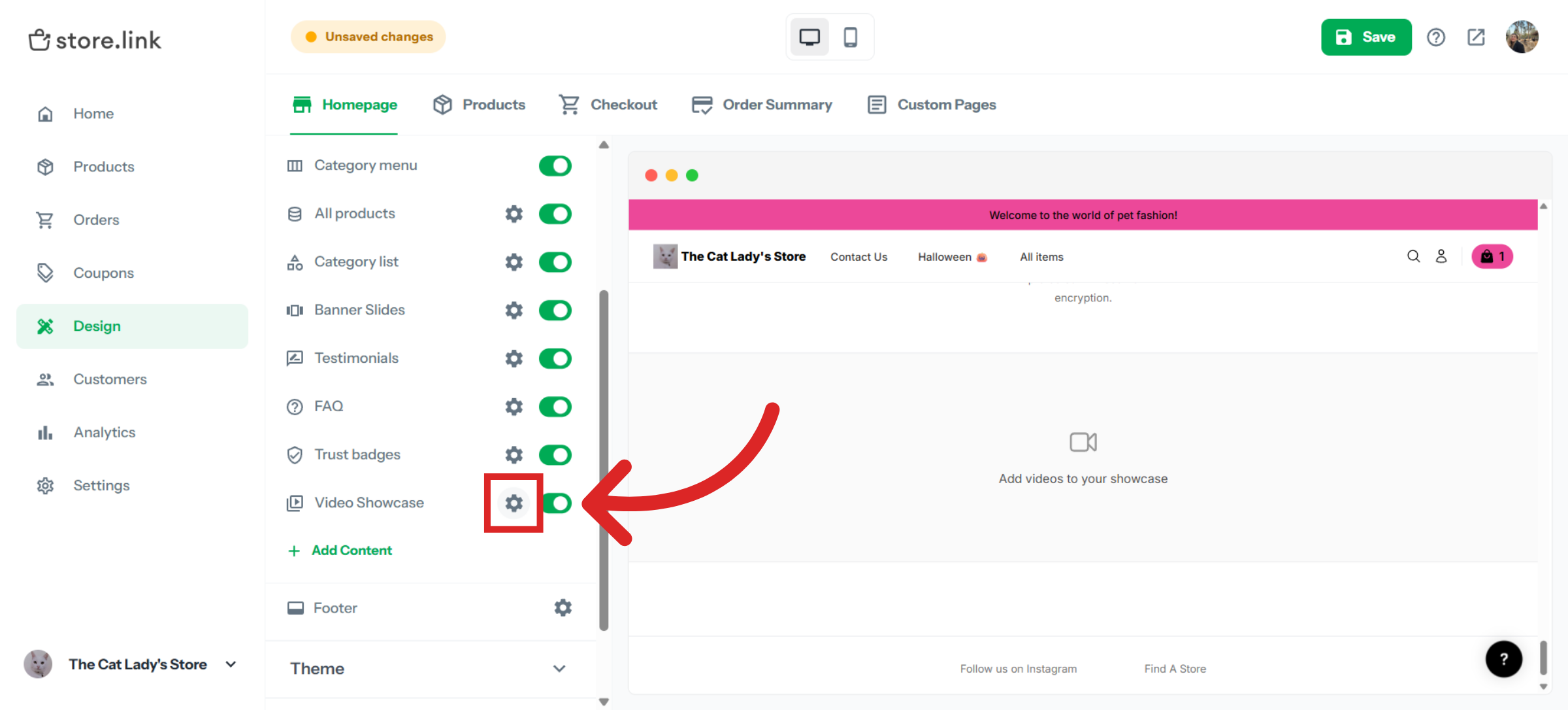
Click the gear-shaped icon next to Video Showcase to open its settings and start customizing how it appears on your storefront.
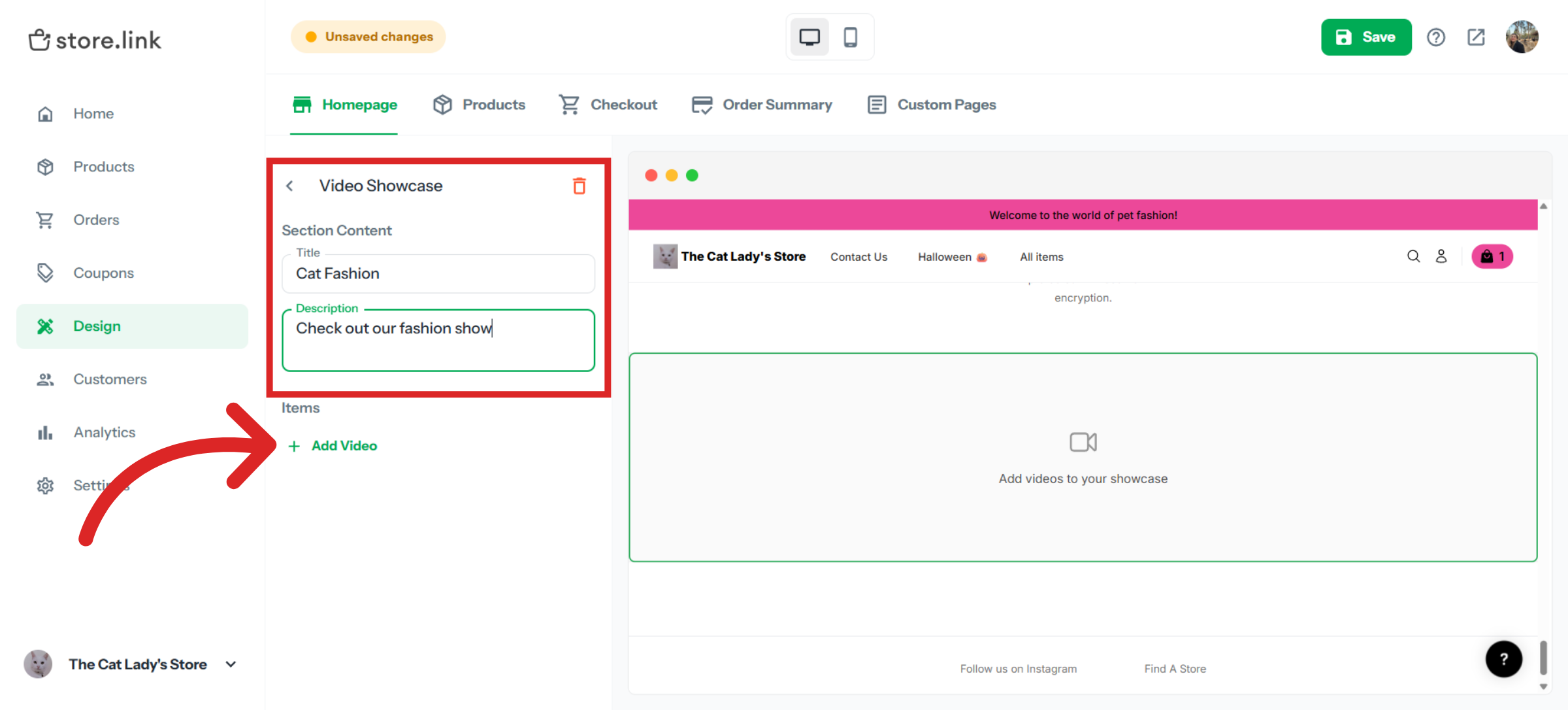
Enter a title and description for your Video Showcase section. When you’re ready, click + Add Video to start uploading your videos.
When you click Add Video, you’ll see several options:
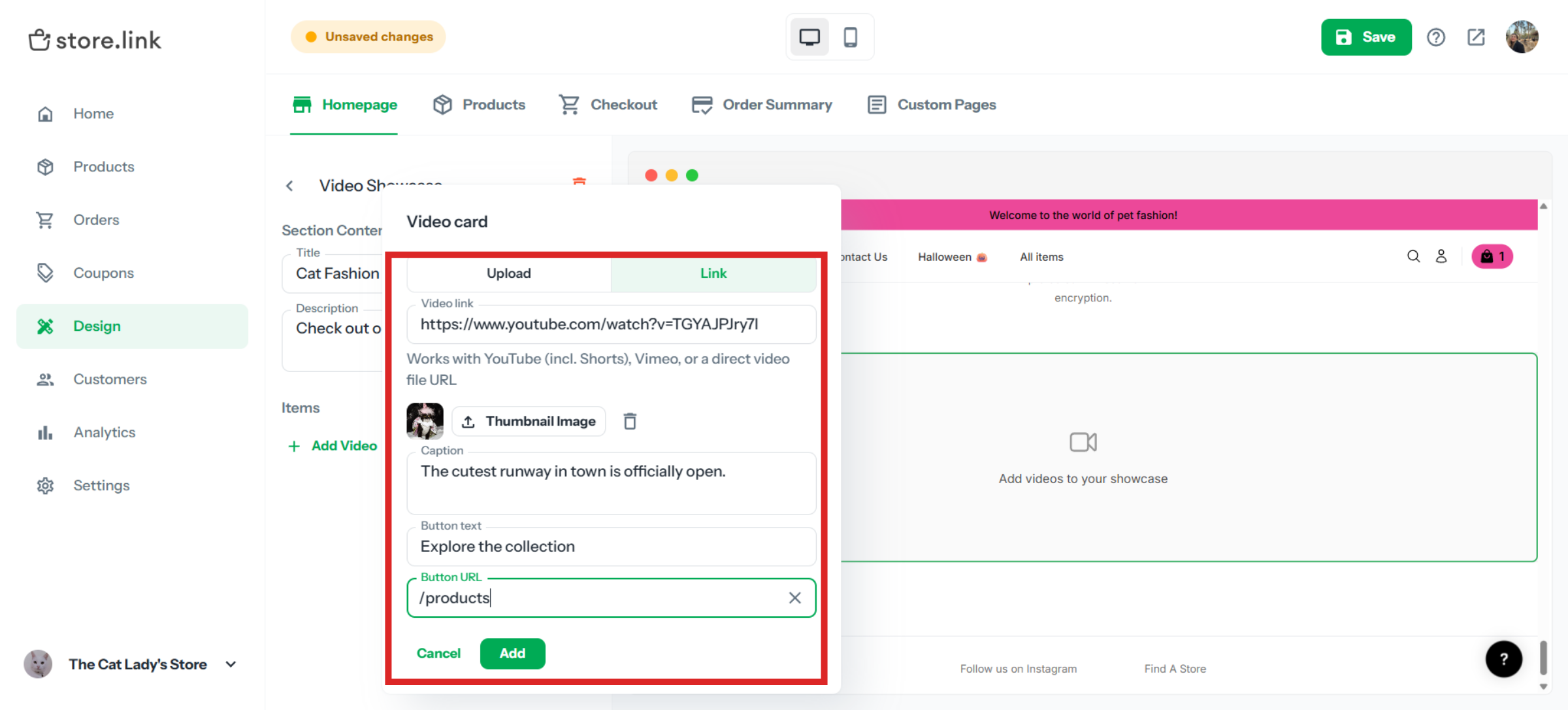
Video link | Add your video by entering a YouTube or Vimeo URL, or a direct file link. You can also upload a video directly from your device. |
Thumbnail image | By default, your video uses an automatically generated thumbnail. You can replace it with your own image to control how the video appears in your store. |
Caption | Add a short caption to introduce your video or give customers more context about what they’re watching. |
Button text | Enter the text you want to display on the button below your video. |
Button URL | Enter the URL of the page or section in your store where you want customers to go when they click the button. This can be another section of your online store, such as a product or collection page. |
Review the finished setup
Once you’ve finished customizing the Video Showcase, review it on your online store to make sure everything looks the way you want.
Still need help?
Contact us