You can easily control how your products are displayed on your store by changing the product display style from design settings. This allows you to choose between different layouts depending on the type of store experience you want to create.
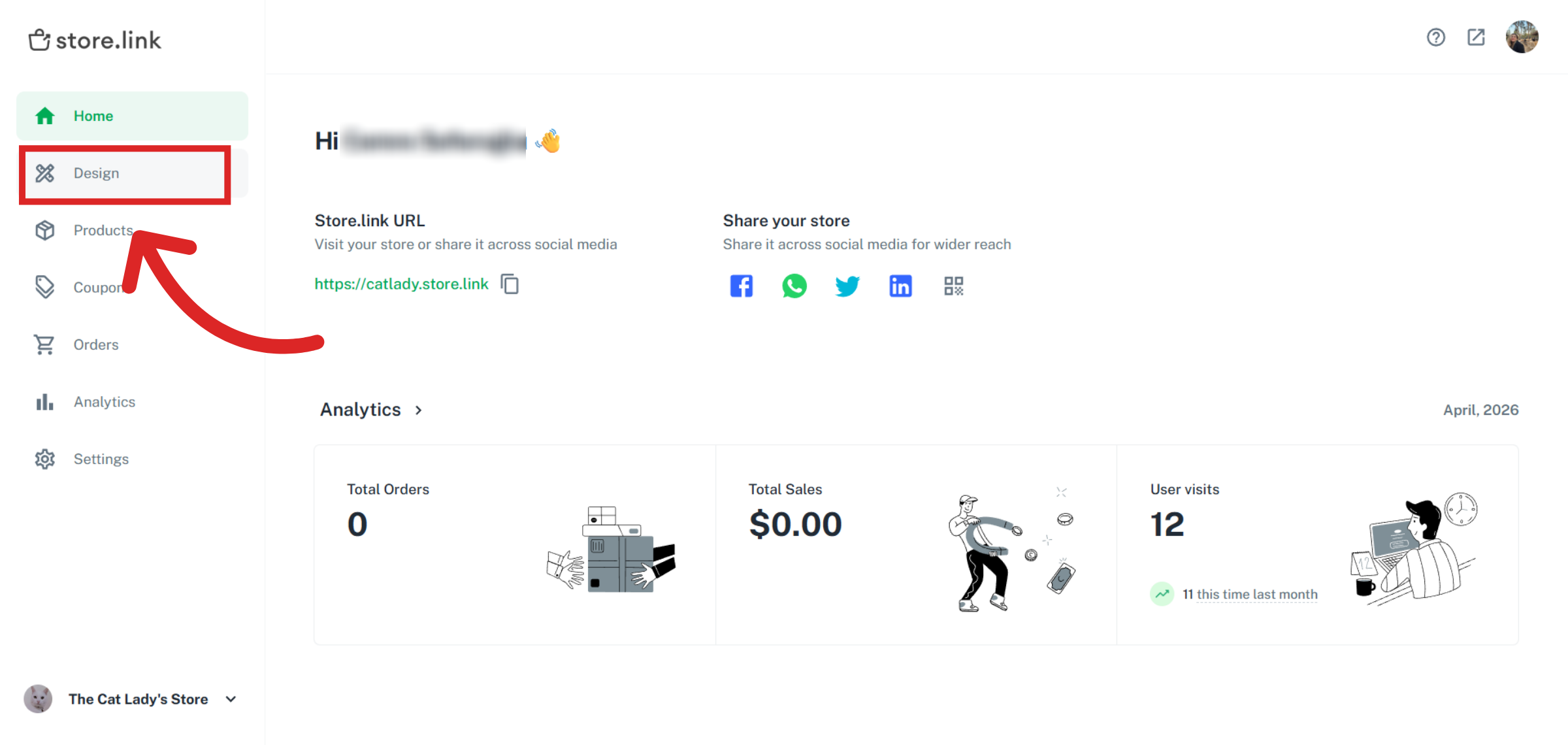
Go to Design settings
Start by opening your StoreLink dashboard and clicking on the Design section from the main menu. This is where all visual and layout settings for your store are managed.
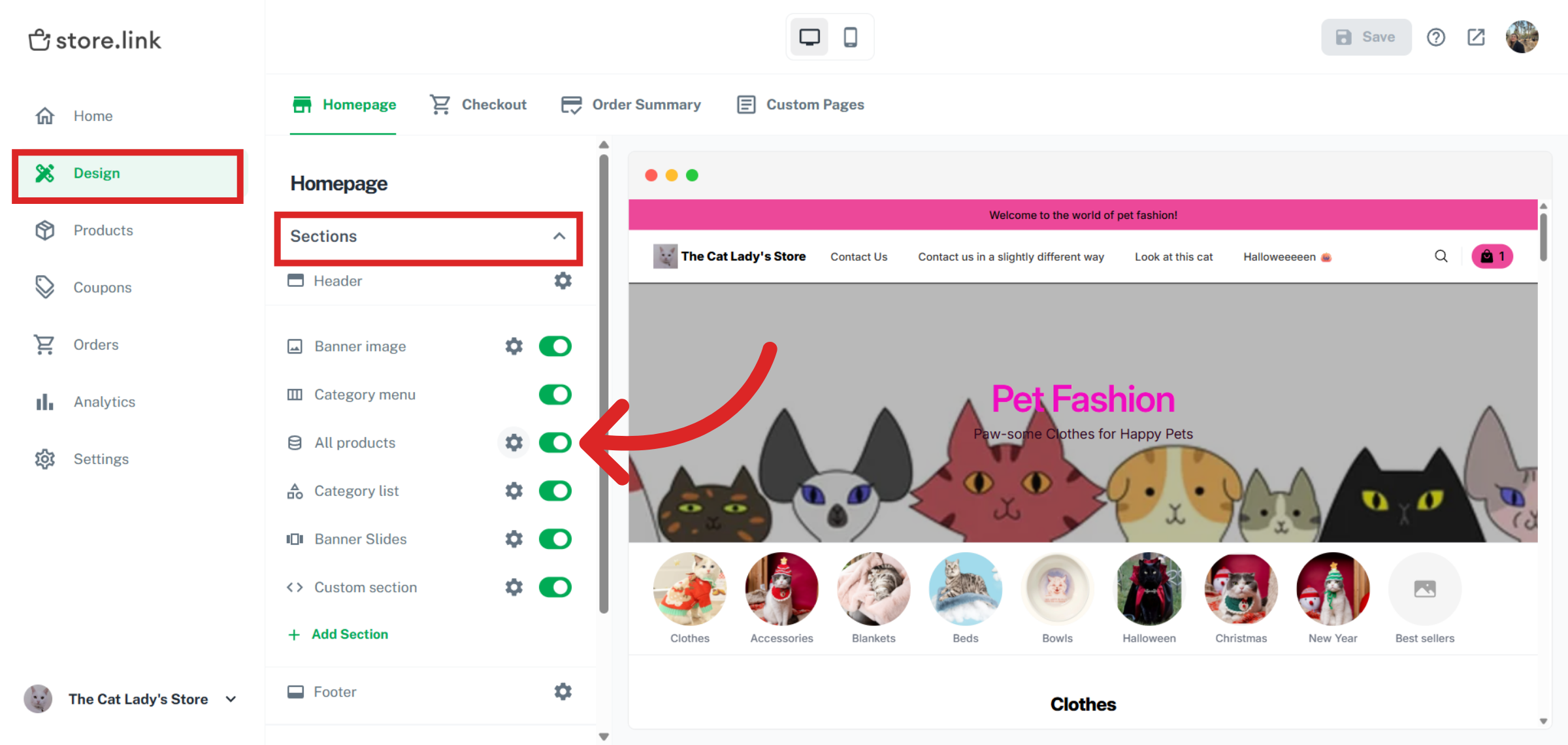
Inside the Design settings, look for the Sections area under Homepage. Under Sections, find All Products. Click on the gear-shaped icon next to it.
Choose your product display style
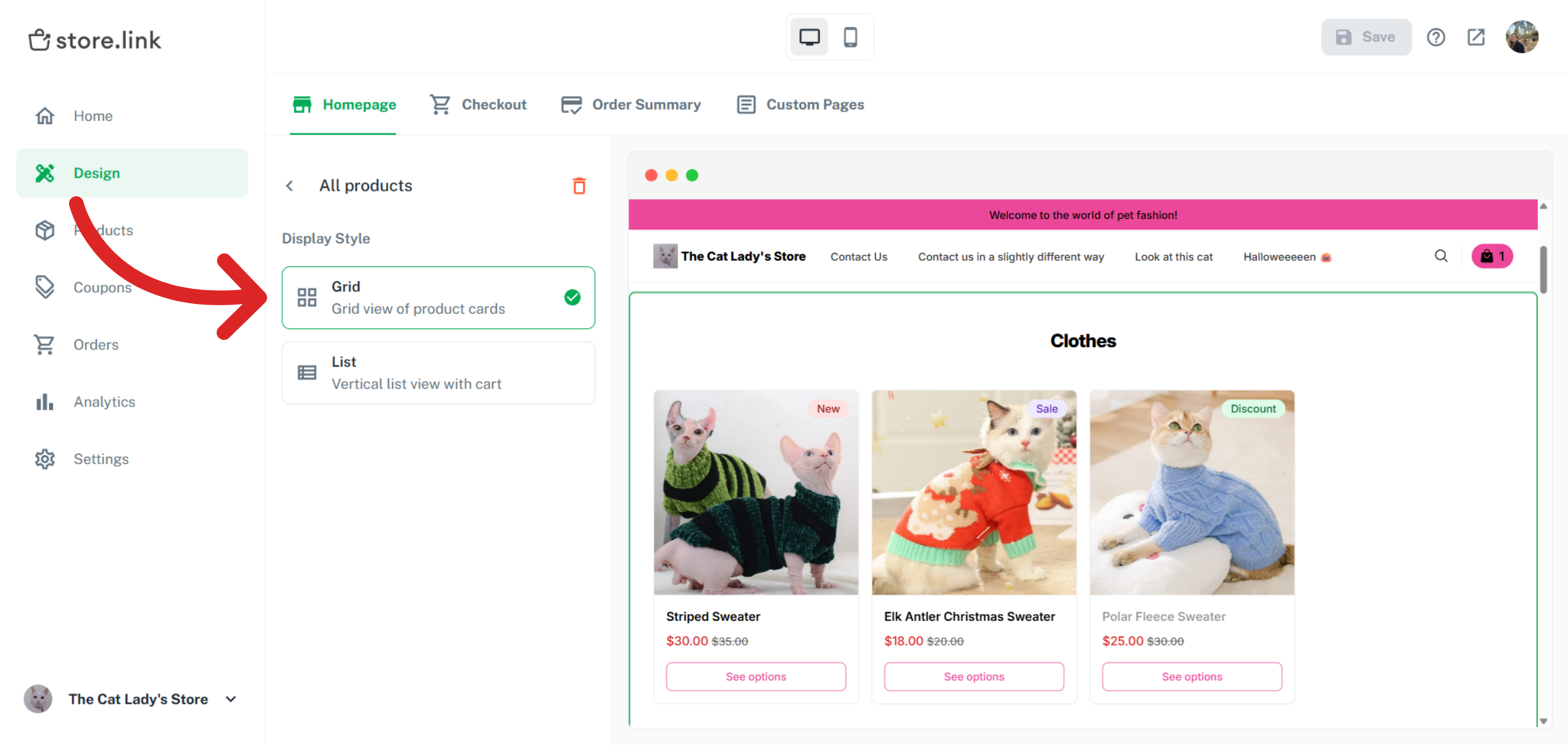
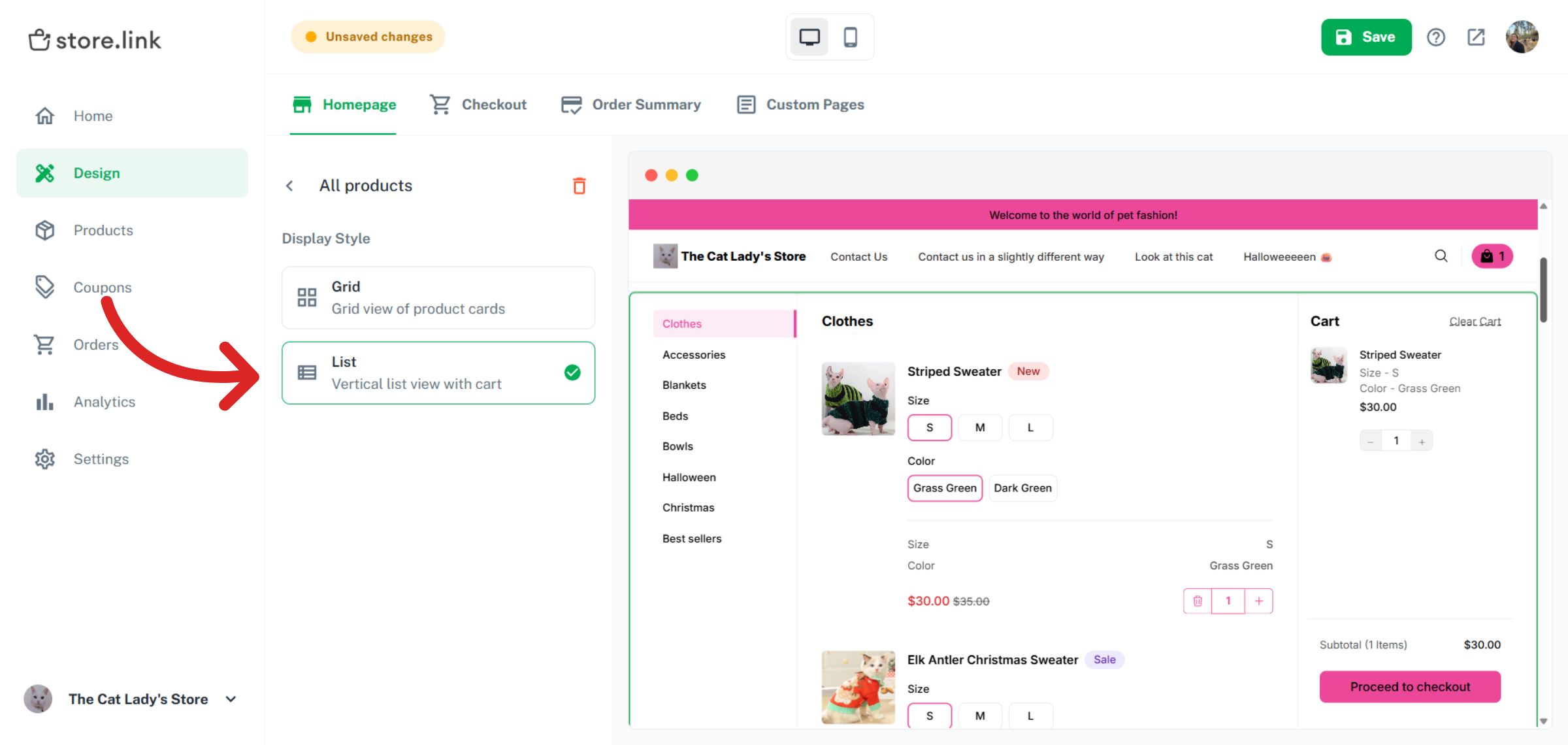
Once you open the settings, you will see two different display style options.
If you select the Grid view, your products will be displayed in a card-based layout. This means products will appear with images, titles, and prices shown in a structured grid format. This layout is ideal for general stores where product pictures take more precedence.
If you select the List view, your products will be displayed in a single-page style layout. In this view, products are stacked vertically one after another, creating a more compact and continuous browsing experience. This layout is commonly used for wholesale-style stores or quick-order stores where users may want to find products easily.
Still need help?
Contact us