
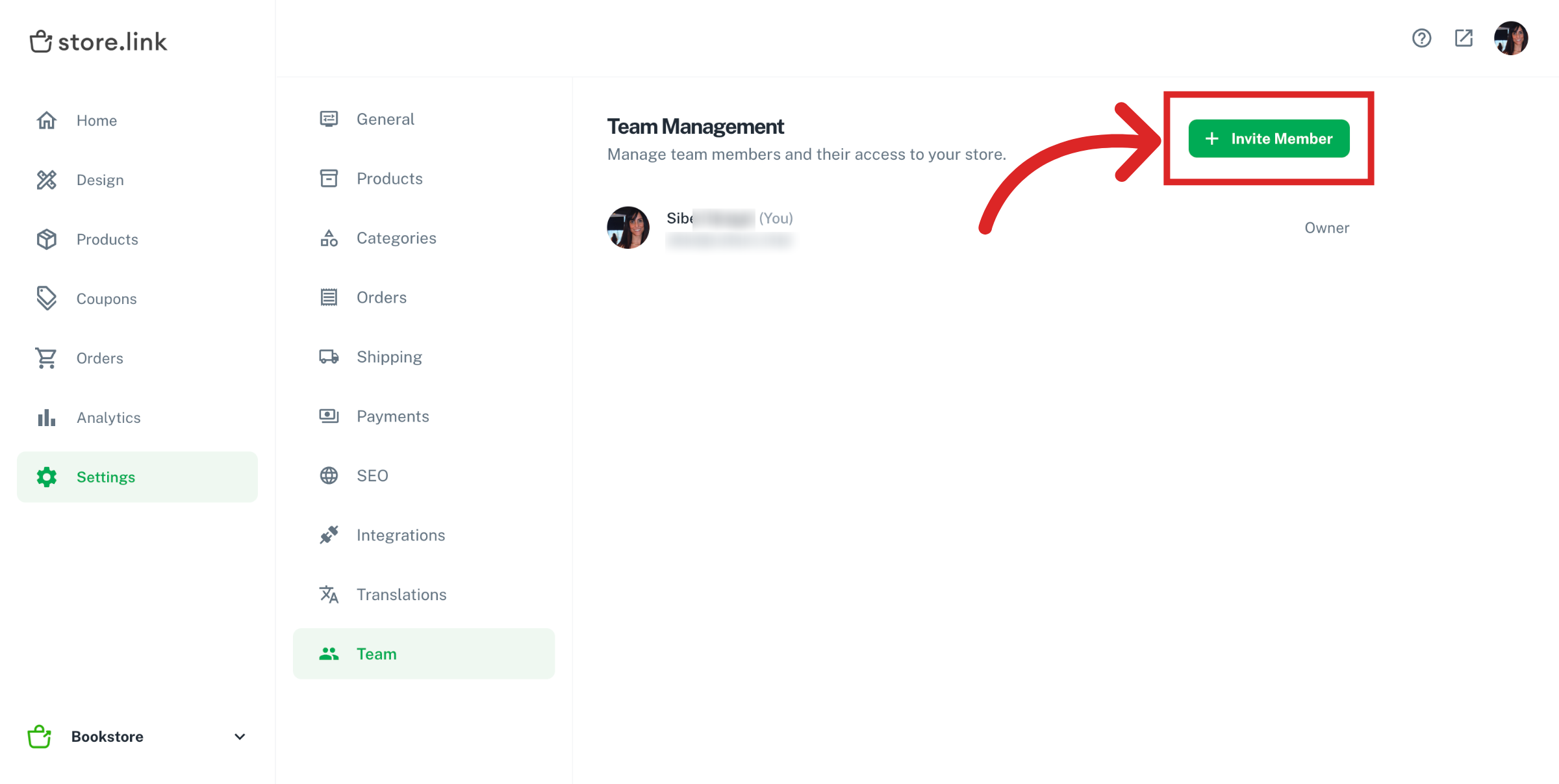
Go to Settings > Team and here you will see how you can add new members to your team and manage your team members.
Invite Team Member
Click on the Invite Member button to invite a user to your team.
When inviting a user to be a team member, there are three levels of access you can grant:
All | Full access to the store |
Design only | Access to design and products |
Orders only | Access for order management |
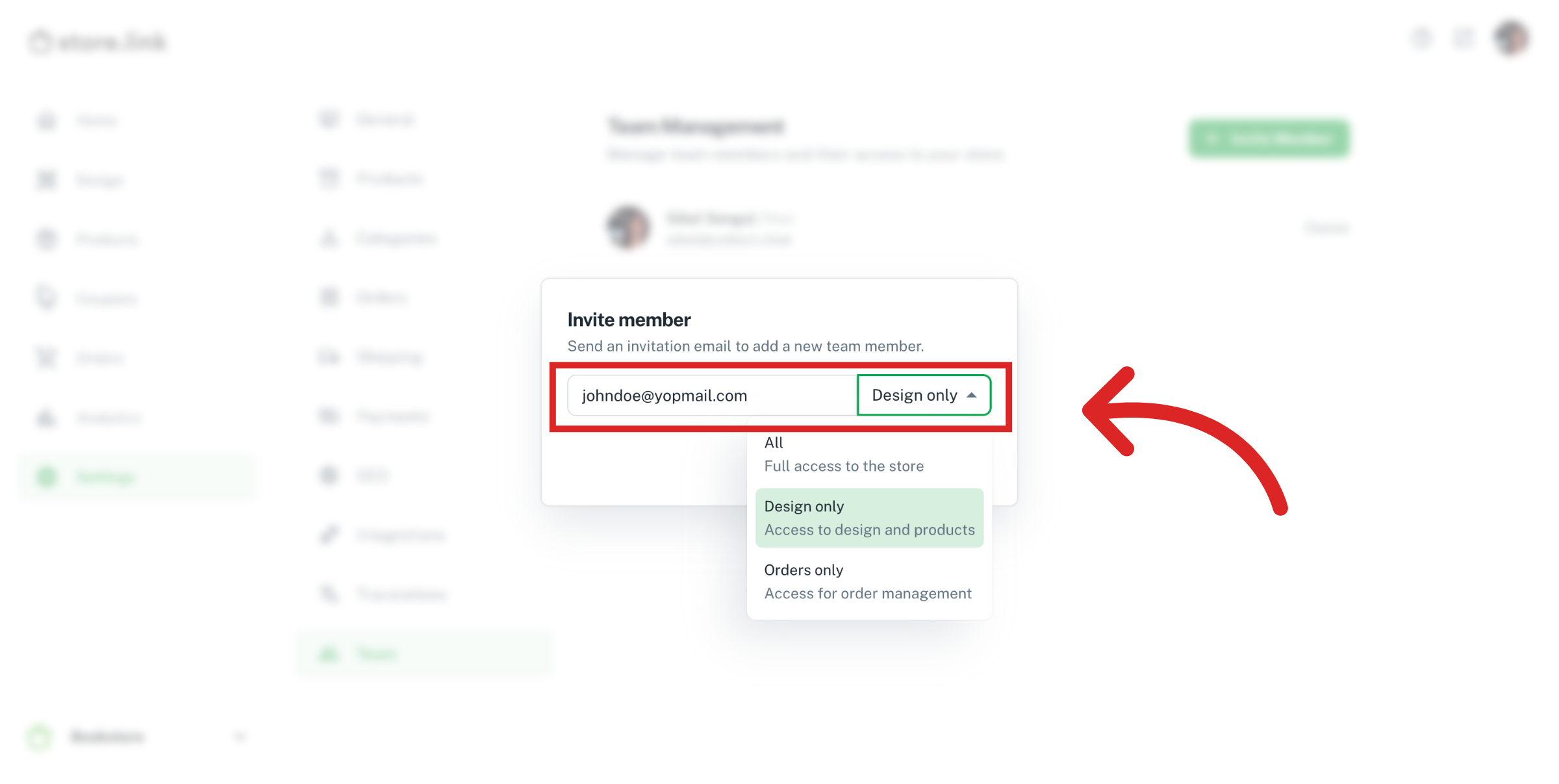
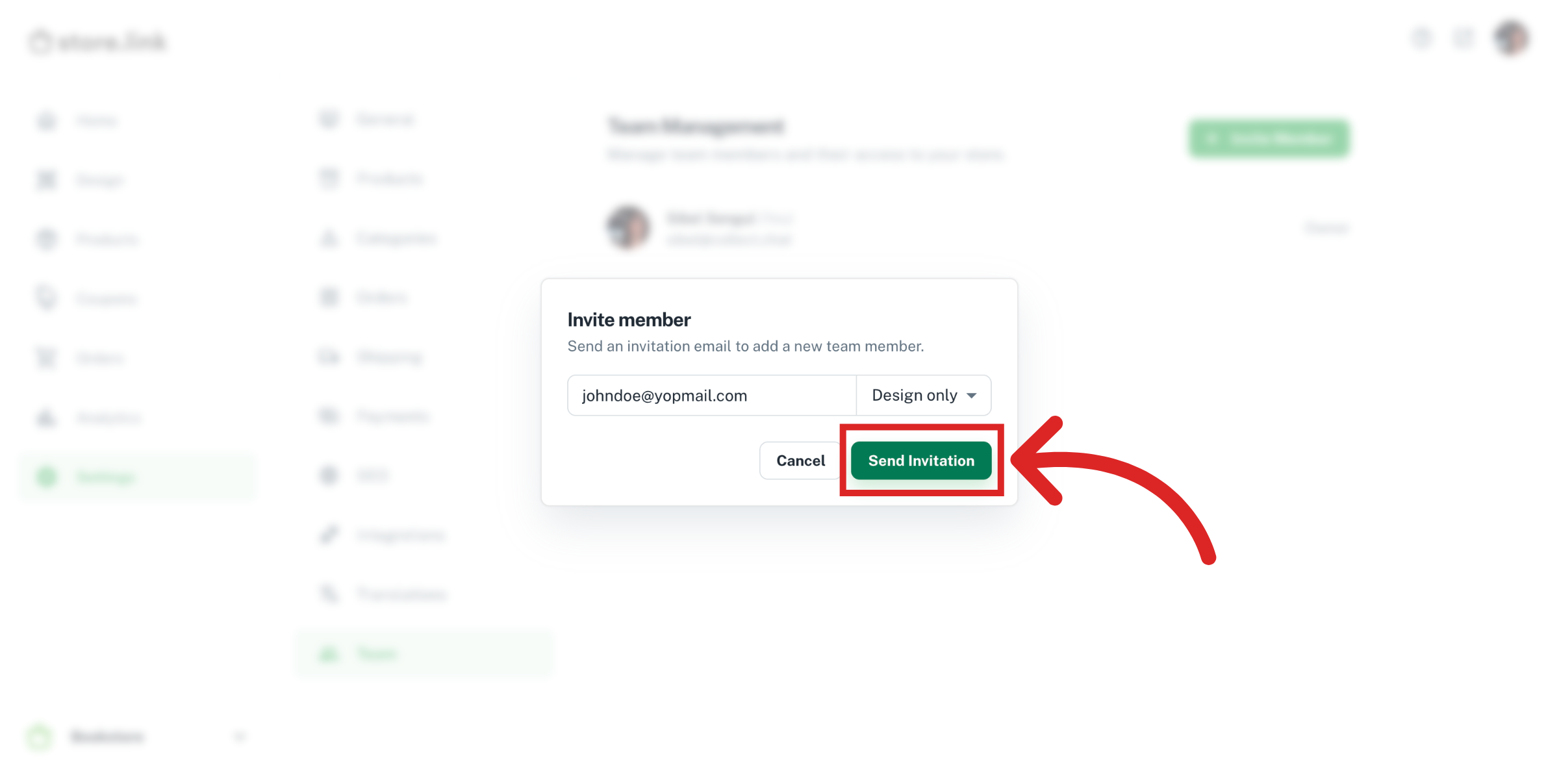
Enter the email address of your team member, select an access level and then click on Send Invitation to send an invitation email.
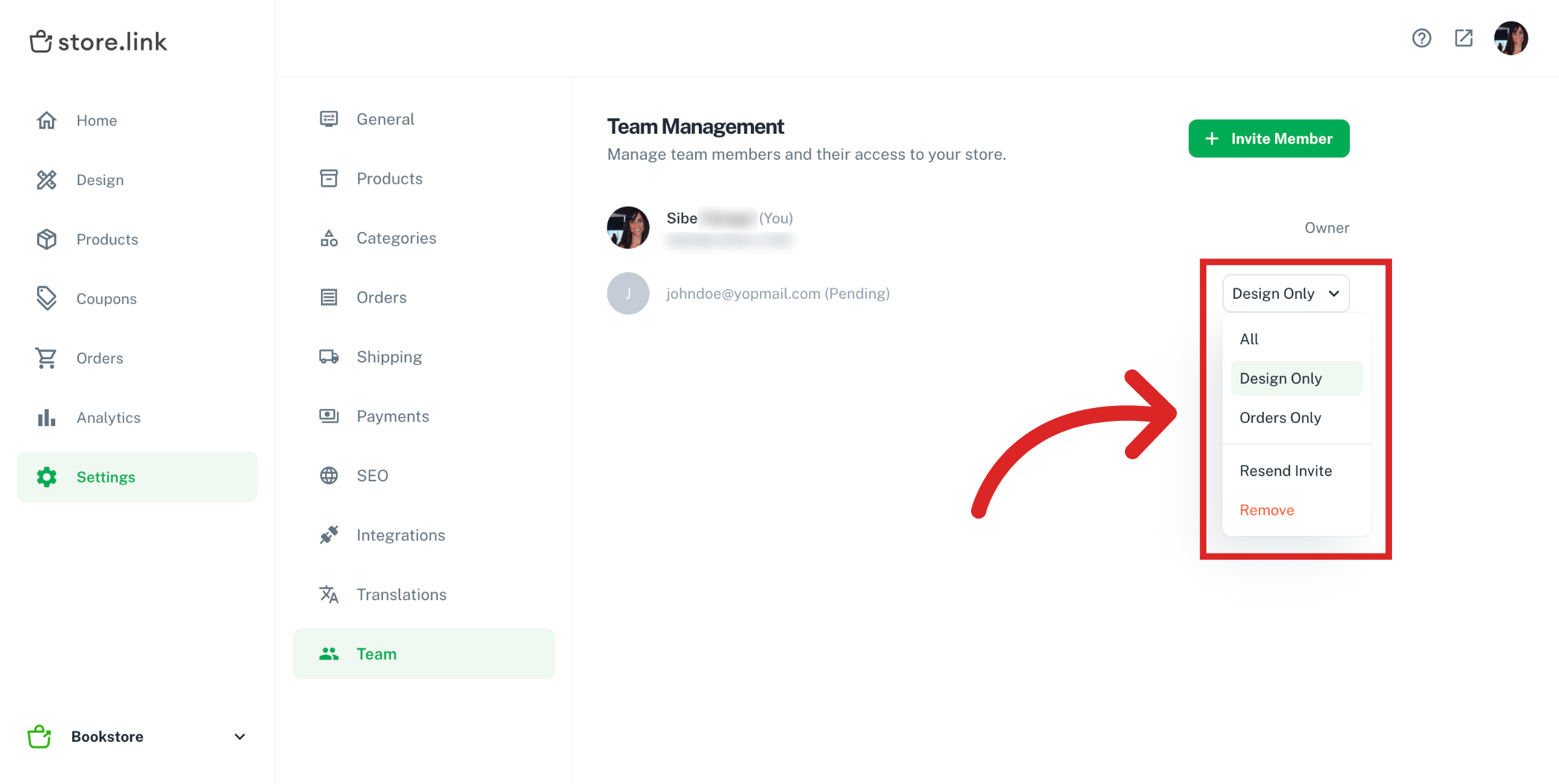
If you change your mind, you can always change the access level of your team member or remove them from your team.
Note
You can still share the Google Sheet associated with your store directly with your teammates. Adding a team member inside StoreLink dashboard does not grant Google Sheet access.
Still need help?
Contact us